Expense mnAI
Complete User Guide
1. Introduction
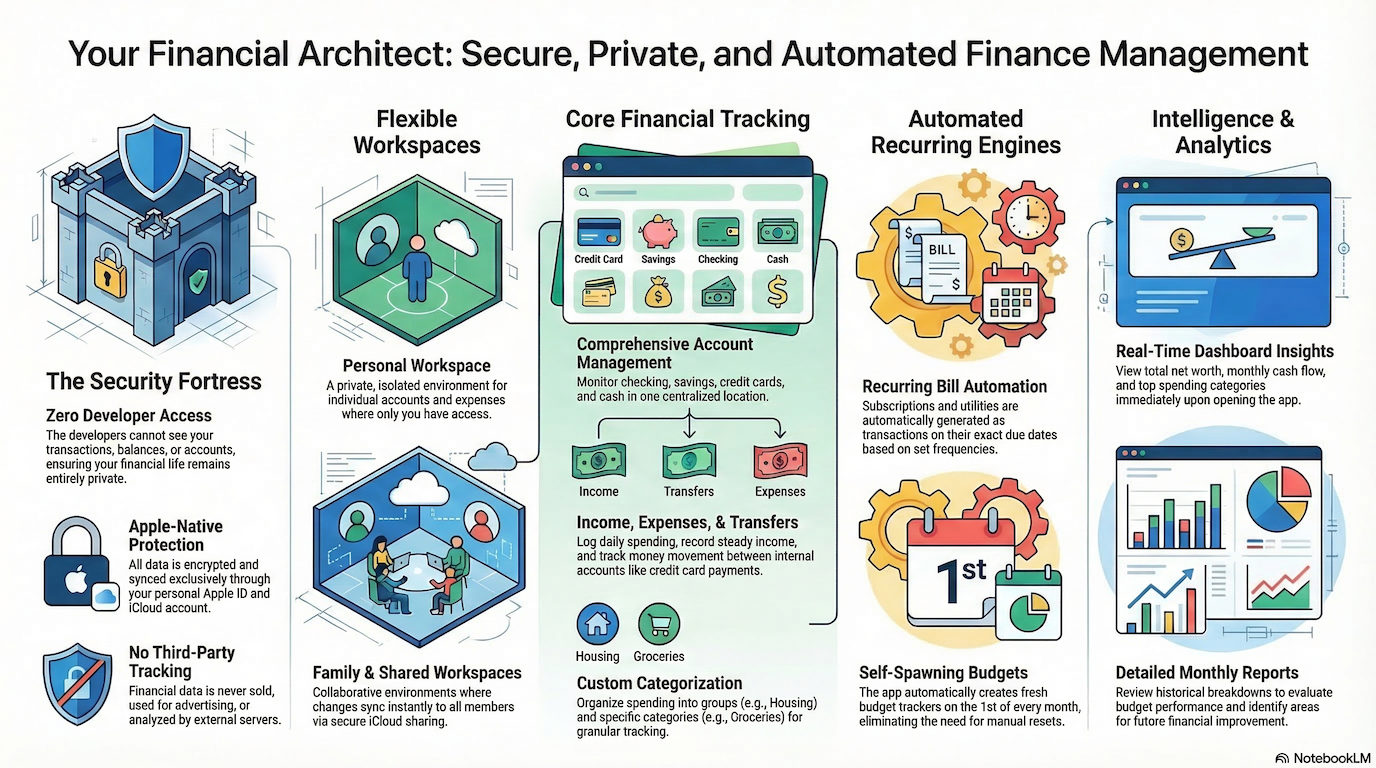
Expense mnAI is a private, intelligent finance manager built exclusively for Apple devices. It is designed to give you a complete picture of your financial life — your income, spending, recurring commitments, and budget health — without ever sharing your data with advertisers, third‑party analytics services, or any external server outside of Apple's own iCloud infrastructure.
What Expense mnAI does
Expense mnAI tracks the money coming in, going out, and moving between your accounts. It understands the difference between a salary deposit, a supermarket trip, and a credit card payment, and organises each one so you can understand where your money actually goes each month.
Beyond simple tracking, Expense mnAI automates the repetitive parts of personal finance. Your recurring bills — rent, subscriptions, utilities — are generated automatically on their due dates so you never have to log them manually. Your budgets reset themselves at the start of every month. And at a glance, the dashboard tells you your net worth, this month's cash flow, and your top spending categories before you have opened a single menu.
What makes Expense mnAI different
- Zero developer access. Your transactions, balances, and accounts are stored exclusively on your device and in your personal iCloud account. The developers cannot see your data. There are no company servers holding your financial information.
- Apple-native protection. Everything is encrypted by your Apple ID and synced through iCloud. The same security infrastructure that protects your photos and messages protects your finances.
- No third-party tracking. Expense mnAI contains no advertising SDKs, no analytics frameworks, and no data brokers. Your financial behaviour is never used to profile you.
- Workspaces. Your personal finances and shared household finances are kept cleanly separate. A Personal workspace is yours alone. Shared workspaces let you collaborate with family members or a partner — each seeing the same data in real time.
2. Getting Started
2.1 Setting Up Workspaces
When you open Expense mnAI for the first time, a Personal workspace is created automatically. This is your private financial environment — only you can see it, and it is stored exclusively in your personal iCloud account. No one else, not even people you later invite to a shared workspace, will ever see your Personal workspace.
What is a workspace?
A workspace is a self-contained financial environment. It has its own accounts, categories, transactions, budgets, and bills. Think of it as a separate set of books. Your Personal workspace contains your individual finances. A shared workspace might contain your household finances — the expenses and income you manage together with someone else.
Creating a shared workspace
Shared workspaces require a Family Sharing plan. To create one, tap the workspace name at the top of the screen to open the workspace picker, then tap "Create Shared Workspace." You will be asked to give it a name. Once created, you can invite others to join — see section 10.4 for the full process.
Switching between workspaces
Tap the workspace name or avatar at the top of the screen at any time to see your available workspaces and switch between them. The app remembers which workspace you were last using.
2.2 Default Data & First Launch
On first launch, Expense mnAI seeds your Personal workspace with a set of default account types, category groups, and categories. These are starting points based on common financial patterns — you are not locked into them and can add, edit, or delete everything except built-in system types.
Default account types: Cash, Checking, Savings, Credit Card, Investment, Loan.
Default category groups and categories
| Group | Categories |
|---|---|
| Food & Dining | Groceries, Dining Out |
| Transportation | Fuel, Public Transit |
| Housing | Rent / Mortgage |
| Utilities | Electricity, Internet |
| Entertainment | (Add your own categories) |
| Salary | Base Salary, Bonus |
| Investments | (Add your own categories) |
| Freelance | (Add your own categories) |
| Gifts | (Add your own categories) |
| Other Income | (Add your own categories) |
You are encouraged to add categories that reflect your actual life — whether that is "School Fees," "Pet Care," or "Side Hustle."
2.3 Navigation & Interface Guide
Expense mnAI uses a floating navigation bar that adapts to your device.
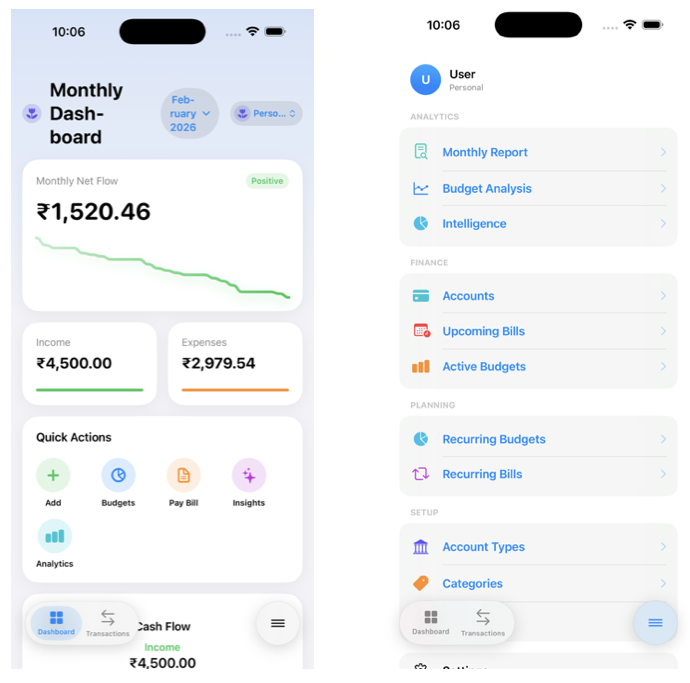
On iPhone (portrait): A pill-shaped bar floats at the bottom of the screen with two fixed tabs — Dashboard and Transactions — and a menu button on the right. Tapping the menu button opens a full-screen navigation panel with access to all sections.
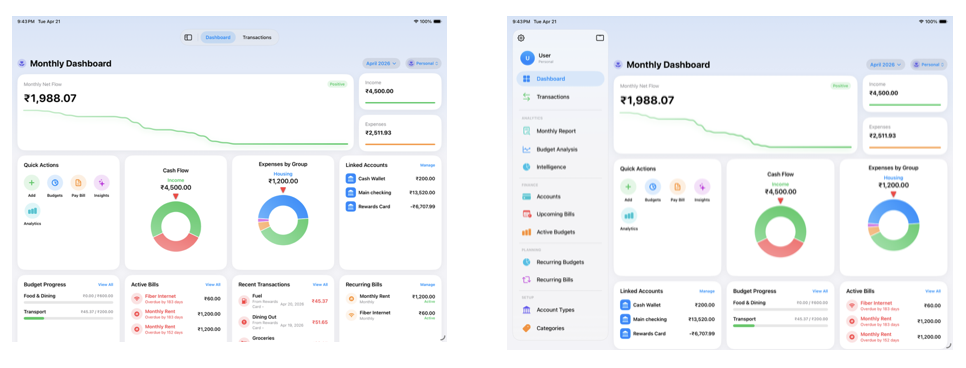
On iPad and Mac: A compact floating bar sits at the top. Tapping the left icon expands it into a full sidebar showing all navigation sections. The sidebar closes automatically when you select a destination.
Main sections:
| Section | What you will find |
|---|---|
| Dashboard | Net worth, monthly cash flow, upcoming bills, budget summary |
| Transactions | All income, expenses, and transfers for the active workspace |
| Accounts | Your accounts and their balances |
| Monthly Report | Historical month‑by‑month breakdowns |
| Budget Analysis | Visual breakdown of budget performance |
| Intelligence | AI‑generated spending insights and patterns |
| Upcoming Bills | Bills due in the next 30 days |
| Active Budgets | Current month budget trackers |
| Recurring Bills | Manage bill templates |
| Recurring Budgets | Manage budget templates |
| Account Types | Manage account type labels |
| Categories | Manage your spending categories |
| Category Groups | Manage group containers |
| Settings | Currency, language, appearance, subscription |
3. Accounts
3.1 Understanding Account Types
An account type is a label that describes what kind of financial account something is — checking, savings, credit card, and so on. Account types do not affect calculations; they are for your own organisation and display. Expense mnAI comes with six default account types: Cash, Checking, Savings, Credit Card, Investment, and Loan. You can create your own custom types if none of the defaults match — for example "Crypto Wallet" or "Provident Fund."
3.2 Creating and Managing Accounts
Accounts are the financial containers inside a workspace. Every transaction must be linked to at least one account — either the account money came from, the account money went to, or both in the case of a transfer.
To create an account: Navigate to Accounts from the menu, tap the + button, enter a name (e.g., "HDFC Savings"), select an account type, optionally enter an opening balance and date, then tap Save.
Editing an account: Tap the account to open its detail view, then tap Edit. You can change the name, type, notes, and primary default setting.
Setting a primary account: One account can be marked as your primary default. This account is pre‑selected when you open the transaction entry screen, saving you a tap for your most common account.
Soft‑deleting an account: Rather than permanently deleting an account with historical transactions, you can mark it as inactive. Inactive accounts are hidden from active lists but their transaction history is preserved for accurate reporting.
3.3 Opening Balances
When you add an existing account to Expense mnAI, you can enter the balance it already had on a specific date. This is your opening balance. Expense mnAI uses this as the starting point and calculates the current balance by adding income and subtracting expenses from that date forward. If you are setting up Expense mnAI for the first time and your accounts already have existing money, set the opening balance to the current balance as of today with today's date.
4. Categories & Groups
4.1 Understanding the Category System
Expense mnAI uses a two-level system to organise your transactions: Groups and Categories. A Group is a broad container — for example "Food & Dining" or "Transportation." A Category is a specific item inside a group — for example "Groceries" or "Fuel." Every transaction can be assigned both a group and a category, giving you the ability to see your spending summarised at either level.
This two-level structure means you can see "I spent ₹14,000 on Food & Dining this month" and also drill down to see "₹9,000 was groceries and ₹5,000 was dining out." Groups are also typed: a group is either an Expense group or an Income group. This determines how transactions assigned to it are interpreted in your reports.
4.2 Creating Custom Groups
Navigate to Category Groups from the menu, tap the + button, enter a name, select an icon from the SF Symbols library, choose Expense or Income, then tap Save. Your custom group will appear alongside the defaults and can be used immediately.
4.3 Creating Custom Categories
Navigate to Categories from the menu, tap the + button, enter a name, select an icon, choose which group this category belongs to, then tap Save. Categories must belong to a group. The group determines the category's type (expense or income).
4.4 Favourites
Categories and groups can be marked as favourites. Favourites appear at the top of the selection list when you are entering a transaction, making your most common choices faster to reach. Tap and hold any category or group and select "Add to Favourites."
5. Transactions
5.1 Recording an Expense
An expense records money leaving one of your accounts.
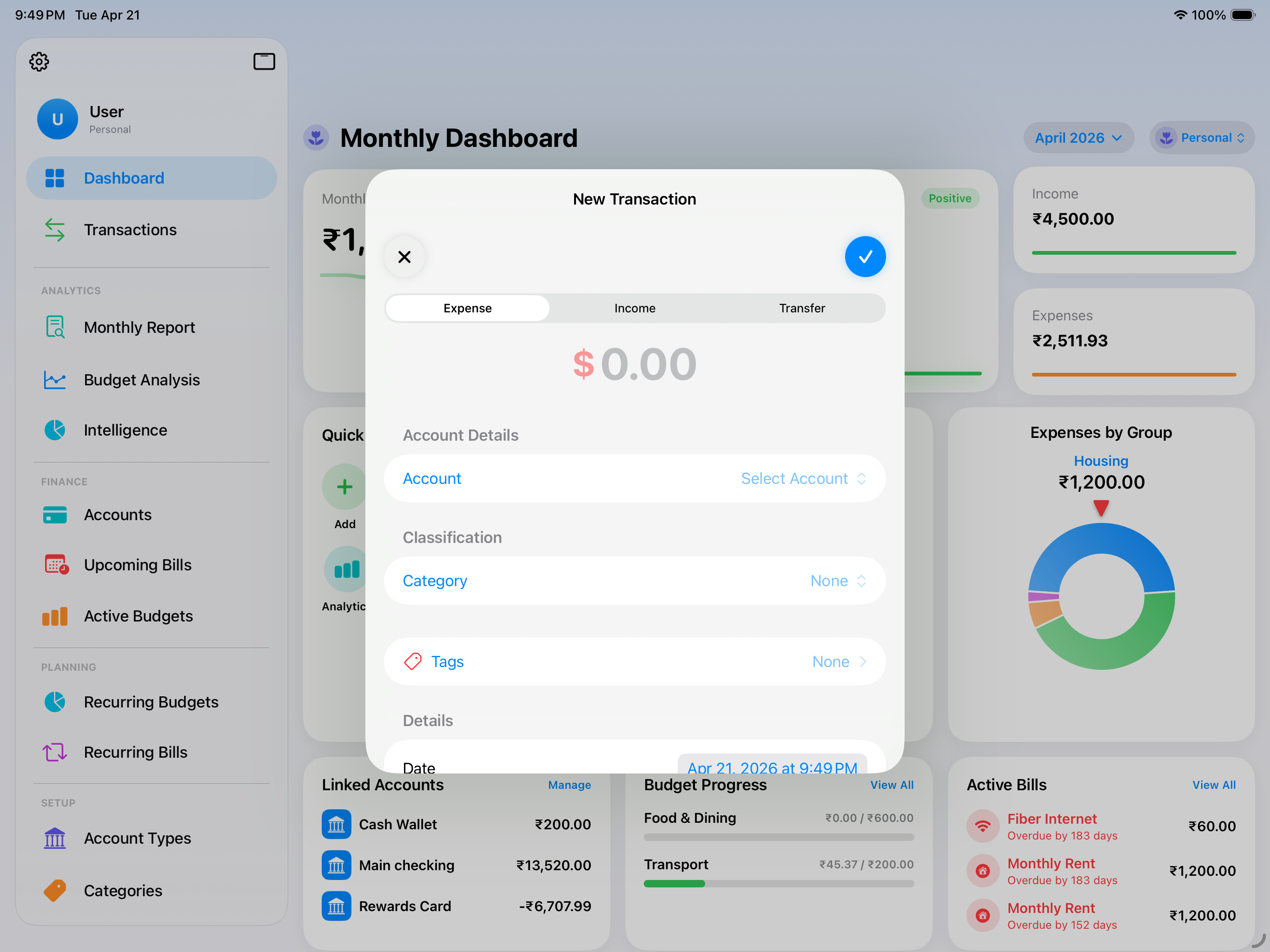
To add an expense: Tap the + button (visible on the Dashboard and Transactions screen), select "Expense", enter the amount, select the date, choose the account the money came from ("Pay From"), select a group and category, optionally add notes/tags/receipt, then tap Save. The account balance will immediately reflect the deduction.
5.2 Recording Income
Income records money arriving into one of your accounts — a salary, a freelance payment, a cash gift, or any other inflow. Tap +, select "Income", enter the amount, choose the account the money arrived into ("Pay To"), select an income group and category, add notes if needed, then tap Save.
5.3 Transfers Between Accounts
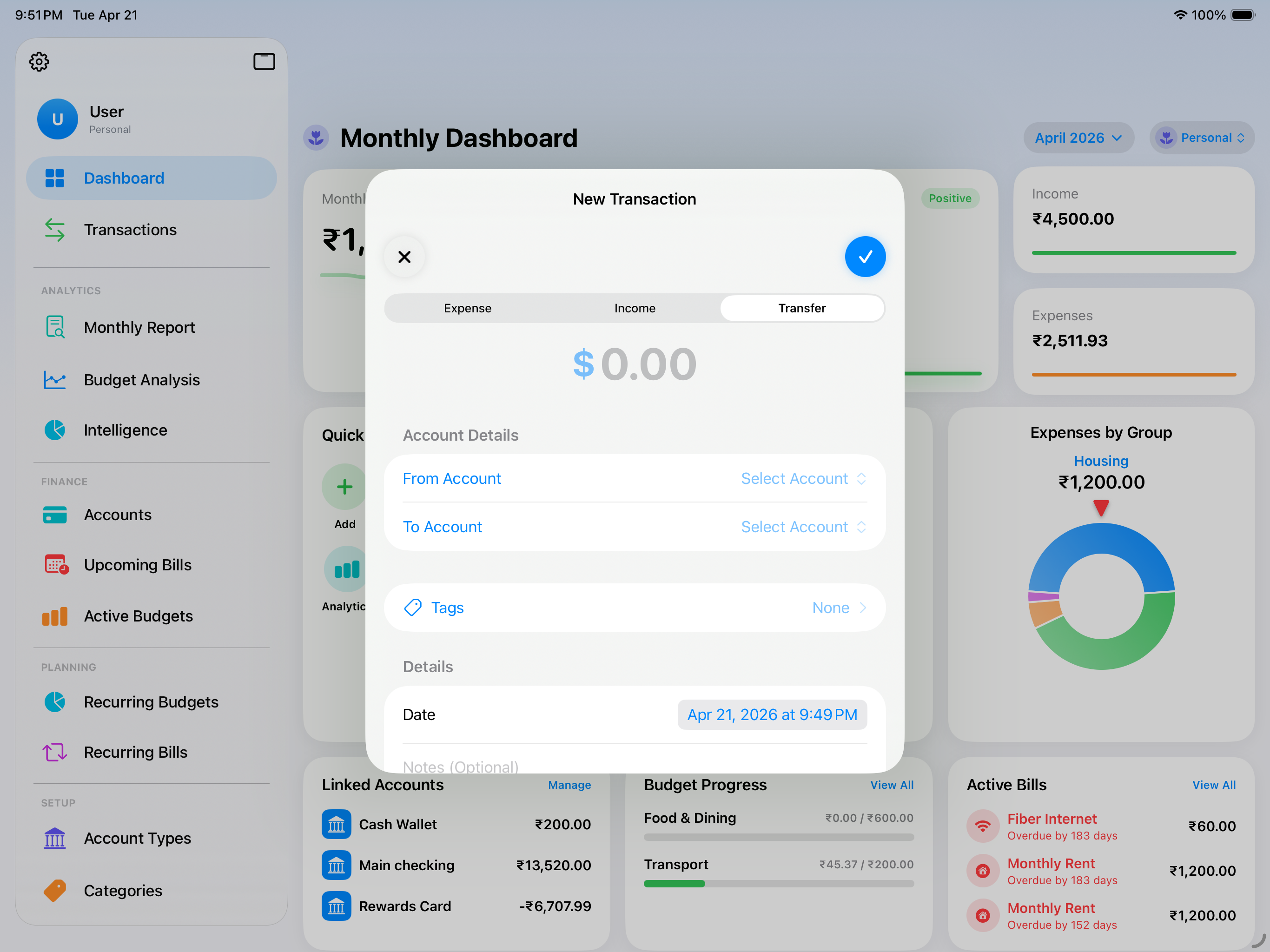
A transfer records money moving between two of your own accounts — for example, paying your credit card bill from your checking account. Tap +, select "Transfer", enter the amount, select the source account ("Pay From") and the destination account ("Pay To"), select the date, add notes, then tap Save. Transfers do not affect your total net worth but do affect individual account balances.
5.4 Attaching Receipts
You can attach a photo or PDF receipt to any transaction. After saving a transaction, open it and tap "Add Receipt." You can take a new photo or choose an existing image from your photo library. Receipts are stored on your device and synced to iCloud with your other data.
5.5 Tags
Tags are free-form labels you can apply to transactions for custom organisation outside the group/category system. For example, tag several transactions as "Holiday 2025" or "Office Supplies." To add a tag, tap the Tags field when entering or editing a transaction and type a new tag name or select an existing one.
5.6 Editing & Deleting Transactions
Tap any transaction in the list to open it. From the detail view, tap Edit to make changes. To delete a transaction, swipe left on it in the list and tap Delete, or open the transaction and tap the Delete button. Deleted transactions are permanently removed and cannot be recovered.
6. Recurring Bills
6.1 How Recurring Bills Work
Recurring bills are automated transaction templates. You define a bill once — its name, amount, frequency, category, and source account — and Expense mnAI generates a pending bill entry on each due date. Bills are generated into a "pending" state first. You review them in Upcoming Bills and mark them as paid once the money has actually left your account.
6.2 Creating a Recurring Bill
Navigate to Recurring Bills from the menu, tap the + button, enter the bill name, choose the transaction type (Expense or Income), set the frequency (Monthly, Weekly, Quarterly, or Yearly), set the start date, optionally enter a default amount, assign a category/group/source account, optionally set an end date, then tap Save.
6.3 Managing Bill Instances
Each generated occurrence is a bill instance. You can view all instances by opening the recurring bill template. Modify a single instance without affecting the template by opening it and editing its amount, date, or notes. To skip an instance (e.g., a bill that did not occur), mark it as skipped rather than paid.
6.4 Marking Bills as Paid
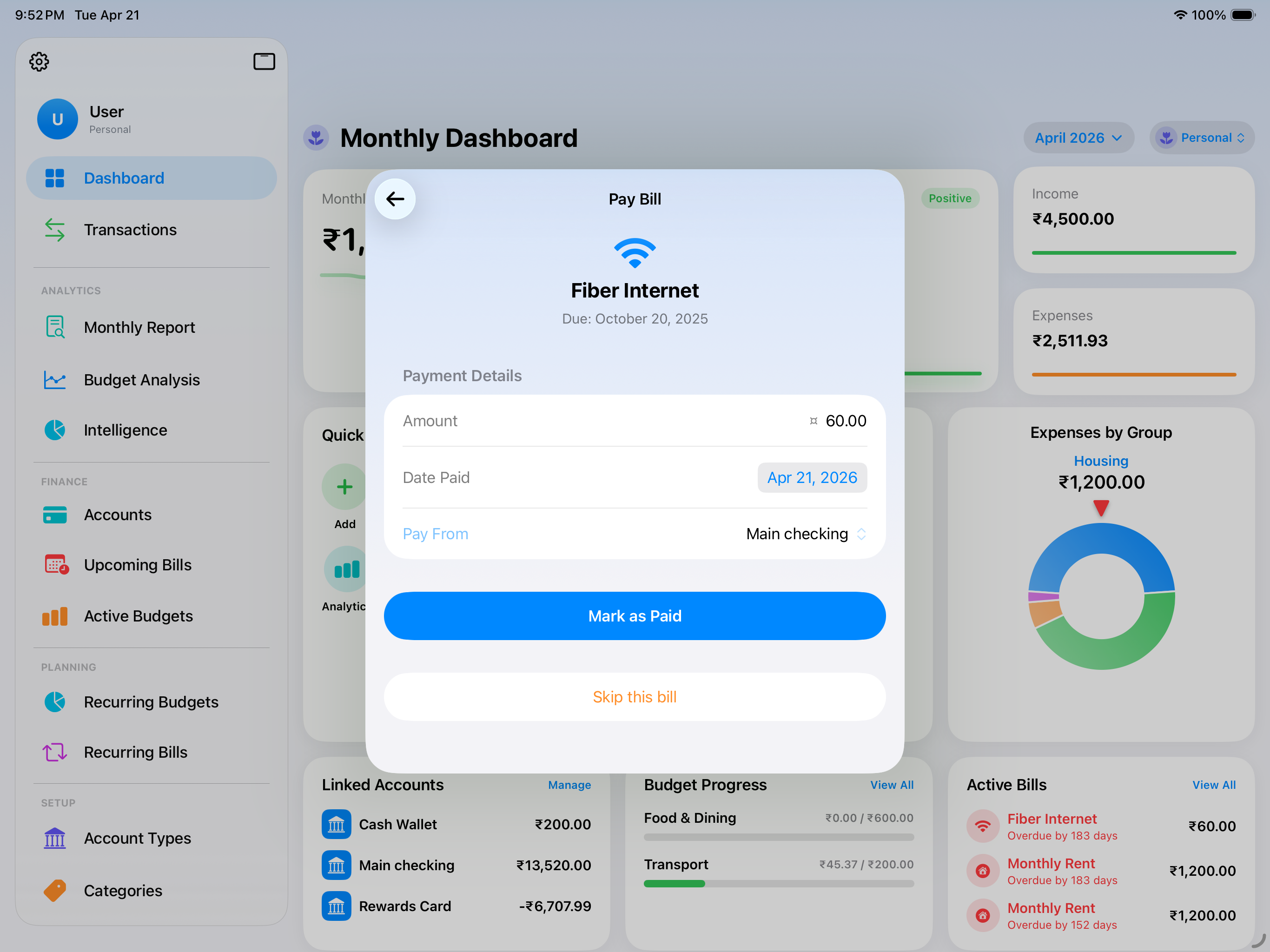
Navigate to "Upcoming Bills" from the main menu. Bills due in the next 30 days are listed. Tap a bill and select "Mark as Paid" to confirm payment, optionally adjusting the actual amount if it differed from the default. Once marked as paid, the bill instance creates a corresponding transaction in your history.
7. Recurring Budgets
7.1 How Budgets Work
Recurring budgets are self-resetting spending targets. You define a budget once — its name, amount, frequency, and the categories or groups it covers — and Expense mnAI generates a fresh budget period automatically at the start of each cycle. No manual resetting required.
7.2 Creating a Budget
Navigate to Recurring Budgets from the menu, tap +, enter a name, set the frequency (Monthly, Weekly, Quarterly), enter the budget amount, set the start date (typically the 1st of the current month), assign the scope (one or more category groups or specific categories; leave empty to apply to all expenses), enable Carry‑Forward if desired, then tap Save.
7.3 Carry-Forward
When Carry-Forward is enabled, any unspent amount at the end of a period is added to the next period's budget. For example, if your Food budget is ₹12,000 and you only spent ₹9,000, the next month starts with ₹15,000 (₹12,000 base + ₹3,000 carried forward).
7.4 Tracking Budget Health
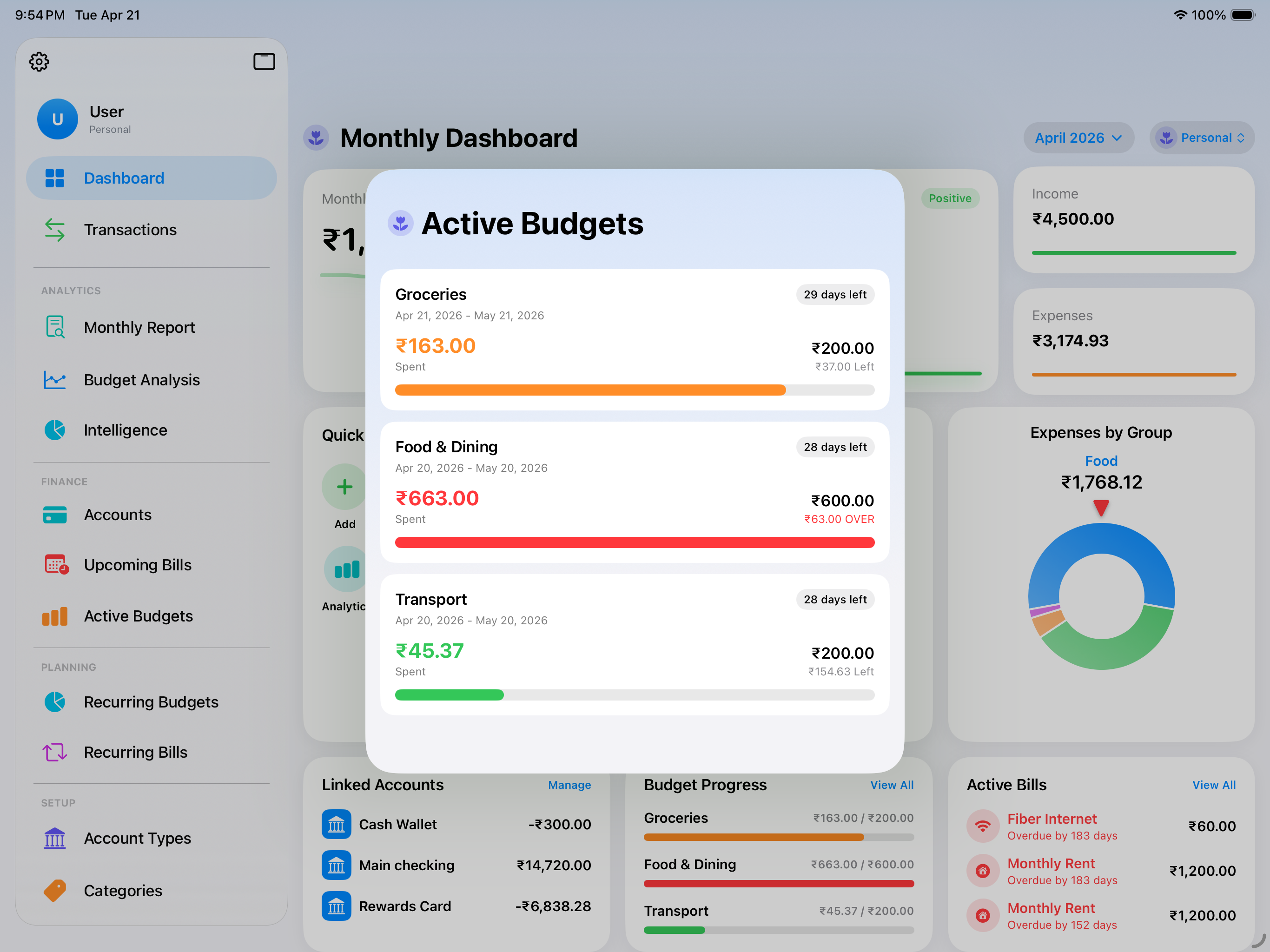
The "Active Budgets" section and the Dashboard show your current budget positions: allocated amount, spent so far, remaining balance, and a colour‑coded progress bar. Budget Analysis (section 8.2) gives a full historical view.
8. Reports & Analytics
8.1 Monthly Report
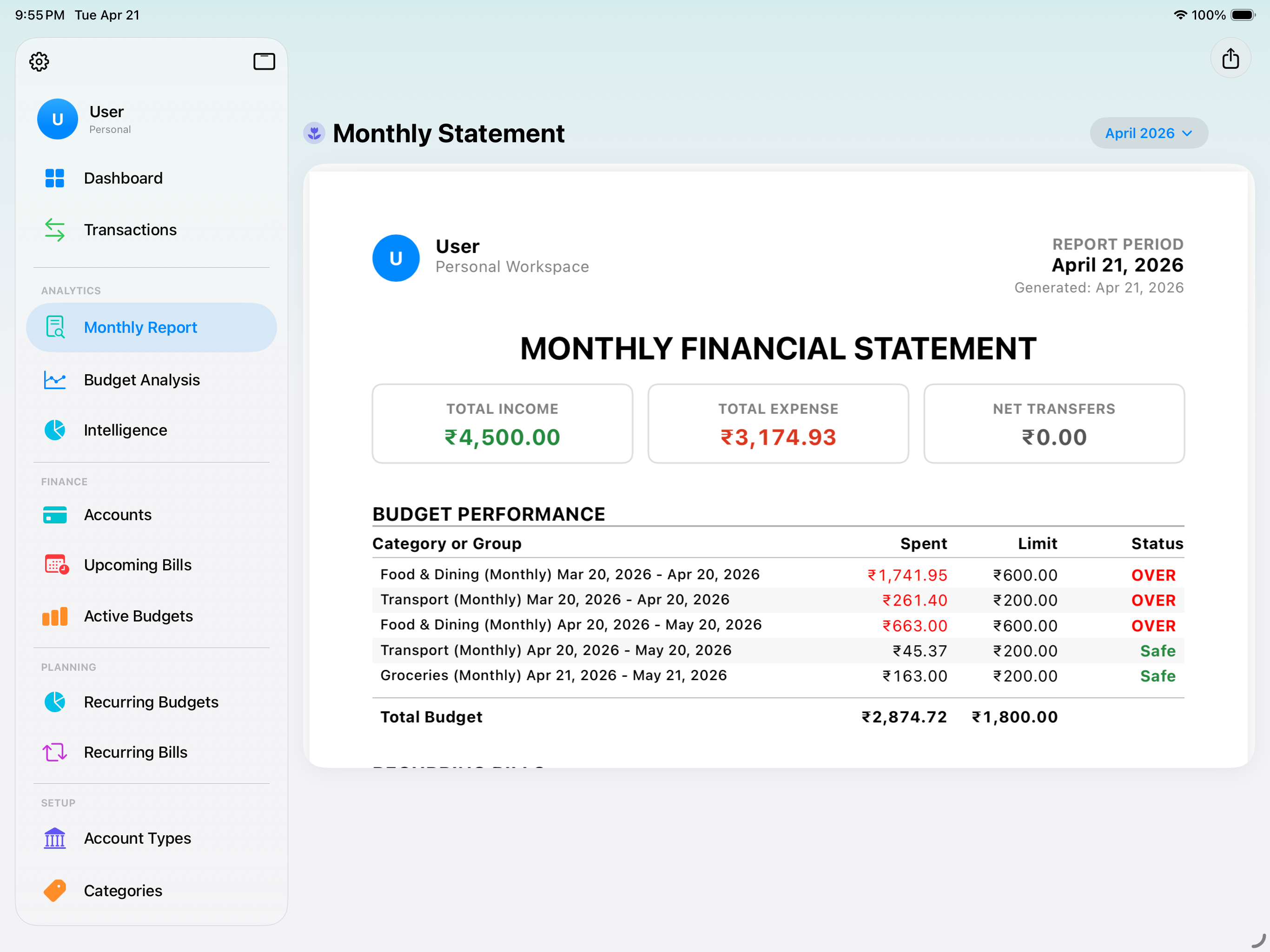
The Monthly Report gives you a detailed financial breakdown for any past month. Access it from the main menu under "Monthly Report." It shows: Total Income, Total Expenses, Net Cash Flow, Spending by Group (visual chart), Spending by Category, Account Balances at month end, and Top Expenses. Use the month navigation arrows to move between past months.
8.2 Budget Analysis
Budget Analysis provides a historical view of your budget performance across all recurring budgets. For each budget you can see period‑by‑period performance (over/under), average spending vs. target, best and worst months, and a trend line. This helps identify budget targets that are set too high or too low and spot spending drift.
8.3 Intelligence & Insights
The Intelligence section uses your transaction history to surface patterns, anomalies, and suggestions automatically. It analyses spending patterns, net worth trend, top spending days, category drift, cash flow forecast, and provides a weekly summary (requires notification permission). All insights are generated locally on your device — no data is sent to any server.
9. Sync & iCloud
9.1 Sync Plans Overview
| Plan | What you get |
|---|---|
| Free | Full app features on one device. Local storage only. No iCloud sync. |
| Single Sync — Monthly / Yearly | Your Personal workspace syncs across all your Apple devices signed into the same iCloud account. |
| Single Sync — Lifetime | Same as Single Sync, paid once, no recurring charge. |
| Family Sharing — Monthly / Yearly | Everything in Single Sync plus the ability to create Shared workspaces and invite others. |
| Family Sharing — Lifetime | Same as Family Sharing, paid once. |
9.2 Choosing the Right Plan
Free – single device only.
Single Sync – multiple Apple devices for your Personal workspace.
Family Sharing – Single Sync features plus shared workspaces with others.
Lifetime plans – same features as monthly/yearly, one‑time payment.
9.3 Multi-Device Sync
With an active Single Sync or Family Sharing plan, your Personal workspace is automatically kept in sync across all Apple devices signed into the same iCloud account. Changes upload within seconds; other devices download changes within 30‑60 seconds. Conflict resolution: the most recently edited version wins.
9.4 Adding a New Device
Install the app on a new device, sign into the same iCloud account, purchase (or restore) your plan. Once your subscription is confirmed, the new device automatically downloads your existing data from iCloud. Within a minute or two, all your accounts, transactions, budgets, and bills appear.
9.5 Restoring Purchases
To restore your subscription after reinstalling or on a new device, go to Settings → Subscription & Plan → Restore Purchases, then sign in with your Apple ID if prompted. Lifetime plans are re‑activated on any device signed into the same Apple ID. If sync does not activate after restore, sign out of iCloud and back in, then try Restore Purchases again.
10. Workspaces & Collaboration
10.1 Workspace Overview
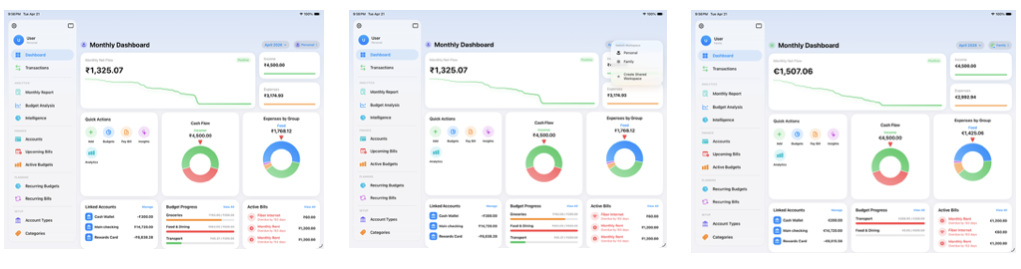
A workspace is a completely isolated financial environment. Expense mnAI supports two types: Personal workspace (private, stored in your private iCloud database) and Shared workspaces (collaborative, stored in a shared iCloud database). Switch between workspaces at any time from the workspace picker (tap the workspace name/avatar at the top of the screen).
10.2 Personal Workspace
Your Personal workspace is created automatically on first launch (identified by a flower icon). It is stored exclusively in your private iCloud database. Others you invite to shared workspaces have no access to your Personal workspace. It cannot be deleted, renamed, or transferred.
10.3 Shared Workspaces
Shared workspaces require a Family Sharing plan. They are for tracking household income/expenses together, managing joint budgets, or sharing bills. All invited members see the same data in real time and have full read/write access. If the owner's Family plan lapses, the workspace remains visible to participants until the share is explicitly revoked.
10.4 Inviting Others to Collaborate
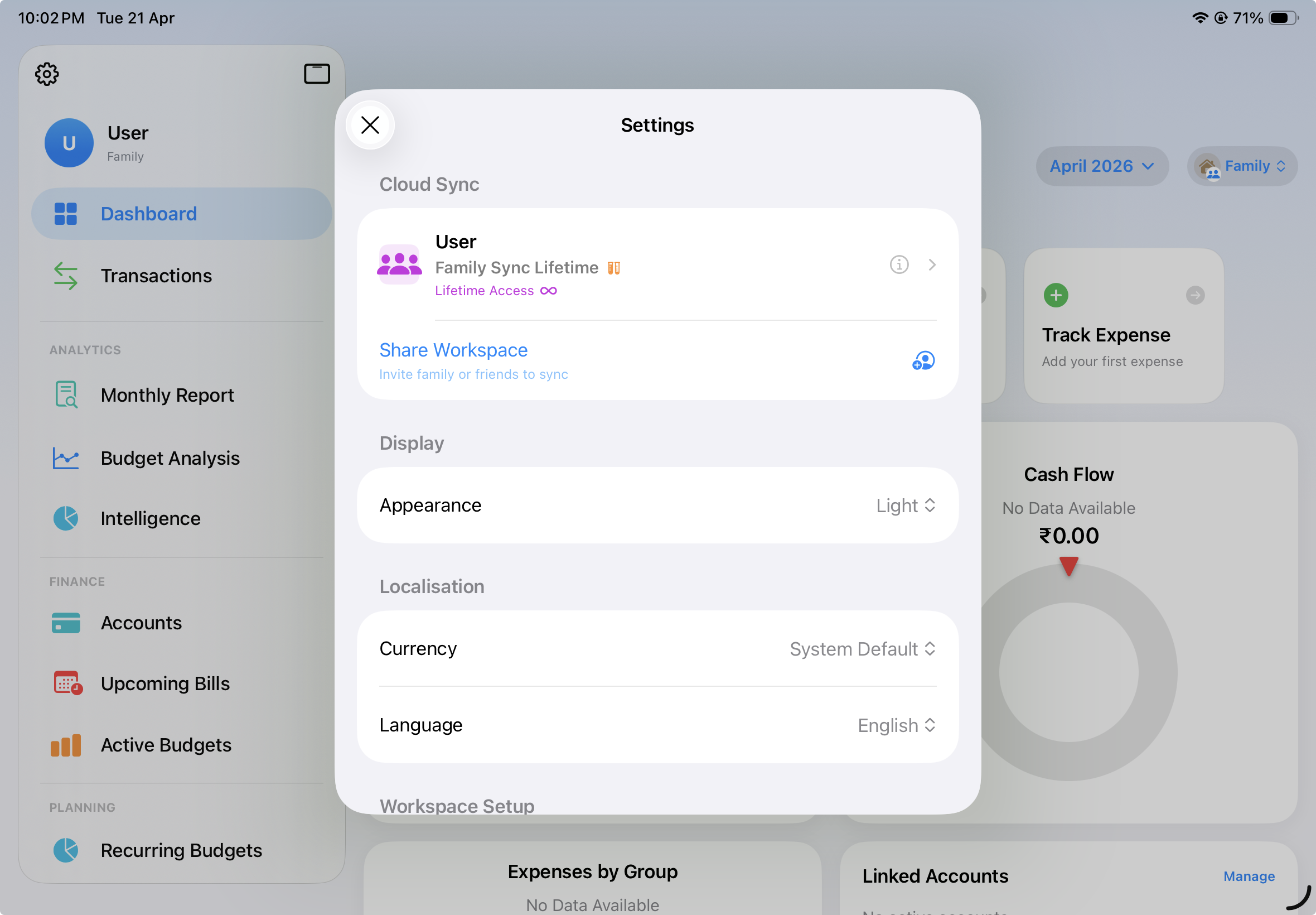
Requirements: Family Sharing plan, workspace already synchronised to iCloud. To send an invitation: open the workspace picker, tap the share icon next to the shared workspace (or open workspace settings → "Invite People"). The iCloud sharing sheet appears; share the invitation link via Messages, Mail, AirDrop, etc. The recipient taps the link and accepts the system prompt to join.
10.5 Accepting a Workspace Invitation
Open the invitation link on your iPhone, iPad, or Mac with Expense mnAI installed. A system prompt "Join [Workspace Name]?" appears. Tap Accept. The workspace will appear in your workspace picker within a few seconds. If it does not appear immediately, close and reopen the app and wait up to one minute. You do not need a paid plan to participate in a shared workspace.
10.6 Managing Collaborators
The workspace owner can remove a collaborator by opening the share sheet from the workspace picker, tapping the participant's name, and selecting "Remove Access." The participant will lose access immediately. A participant can leave a shared workspace by opening the share sheet and tapping "Stop Participating."
11. Privacy & Security
Expense mnAI is built entirely on Apple's security infrastructure. There are no Expense mnAI company servers involved in storing or transmitting your financial data.
- Local storage: Free plan data lives exclusively on your device in an encrypted SQLite database.
- iCloud sync: When sync is enabled, data is transmitted through Apple's iCloud servers with encryption in transit and at rest.
- Developer access: Developers have no mechanism to read your data. No admin portal, no database export, no analytics pipeline.
- No advertising: The app contains no advertising SDKs and participates in no ad targeting or retargeting systems.
- iCloud account changes: If you sign out of iCloud and sign in as a different user, the app detects the change and wipes the local database to protect the previous user's data.
12. Frequently Asked Questions
Can I use Expense mnAI without an internet connection?
Yes. All core features work fully offline. Changes sync to your other devices when you next connect.
Does the app work on Mac?
Yes. Expense mnAI is available on Mac via Mac Catalyst and behaves consistently with the iPhone and iPad experience.
What happens to my data if I cancel my subscription?
Your data remains on your device. You lose sync access, but your existing data is not removed.
What happens to a shared workspace if the owner cancels their Family plan?
The shared workspace remains accessible to participants through iCloud sharing infrastructure for as long as Apple maintains the share.
Can I have multiple Personal workspaces?
No. The Personal workspace is singular—one per iCloud account. You can create multiple shared workspaces instead.
My transactions are not syncing. What should I try?
Check your internet connection, verify your iCloud sign-in, and ensure your subscription is active in the app's settings. Try toggling airplane mode off and on to force a sync attempt. If the issue persists, contact support.
Can two people share a Personal workspace?
No. Personal workspaces are private by design. Create a Shared workspace for collaborative data.
Is there a limit to how many transactions I can add?
No. There is no artificial limit on the number of transactions, accounts, or categories.
Does Expense mnAI support multiple currencies?
Yes. Each workspace has its own currency setting. Cross-currency reporting between workspaces is not currently supported.
How do I contact support?
Navigate to Settings → Help & Support, or visit the support page linked in the App Store. Please include your device model and iOS version when reporting an issue.
Expense mnAI — Your Financial Architect, Secure & Private.